


Reports
We have two types of reports available for scheduling in the Reports module. One is Customisable Reports and second is Standard Reports.
Customisable Reports are the type of reports which can be created as per the merchant’s requirement.
Standard Reports are the basic reports which are readily available at our end.
How to configure Customisable Reports ?
Step 1: Navigate to the Alerts Module on the EC analytics dashboard. In the Navigation bar, click on Monitoring followed by Reports.
Step 2: Click on + Create New Report button available on the Customisable Reports tab.
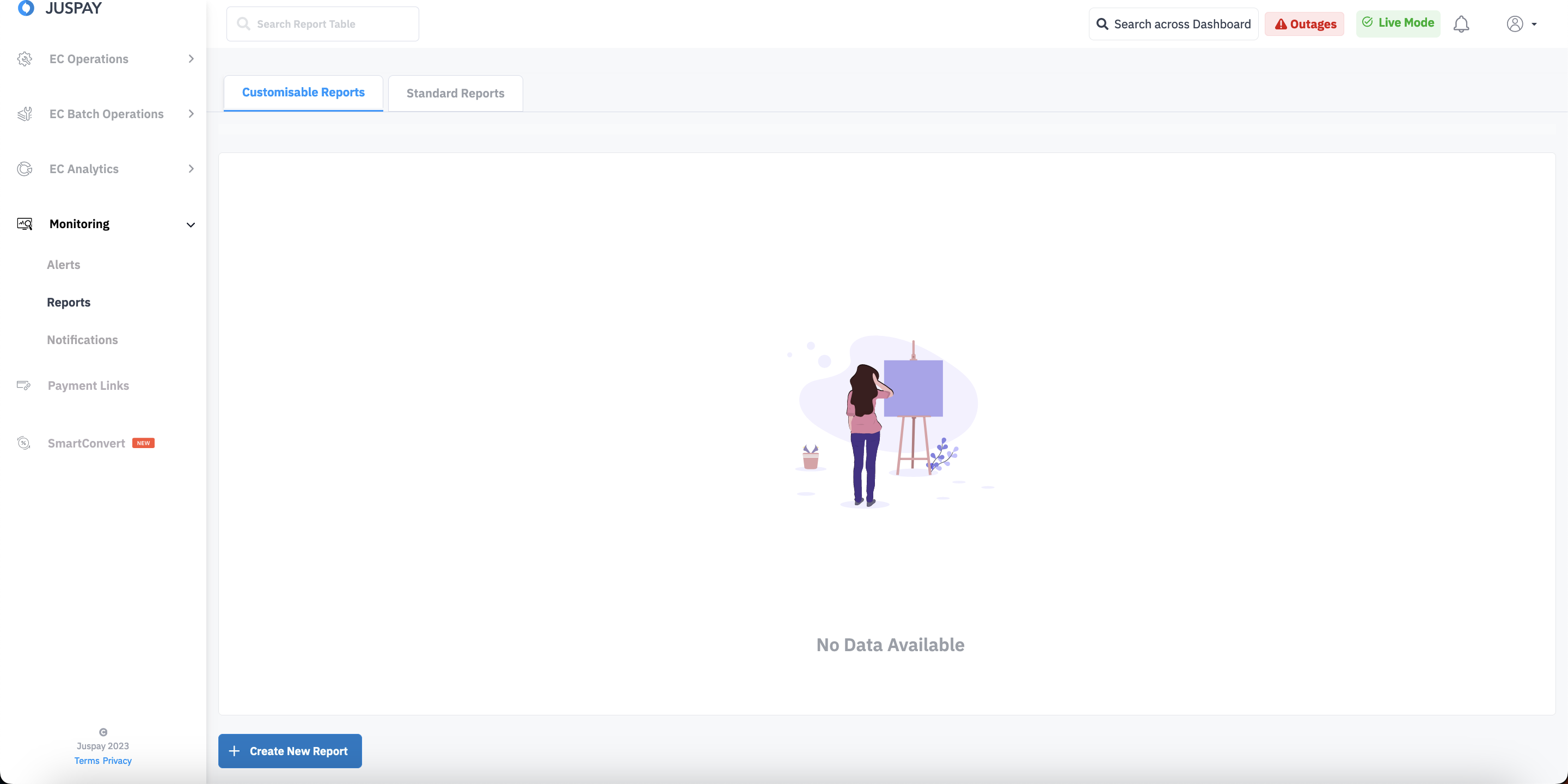
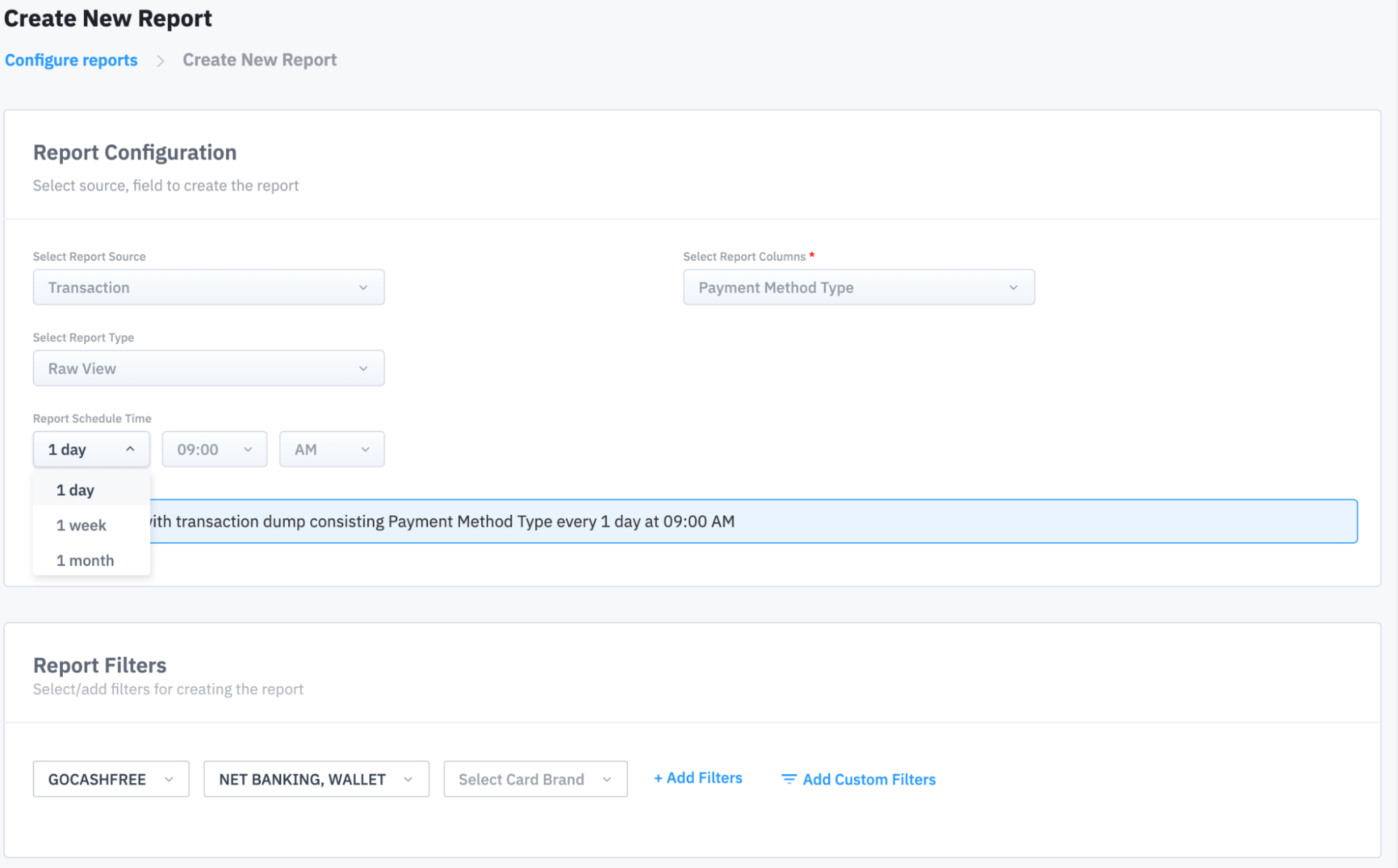
Step 3: Select source and field in the Report Configuration section to create the report as per your requirement and click on Create Report button.
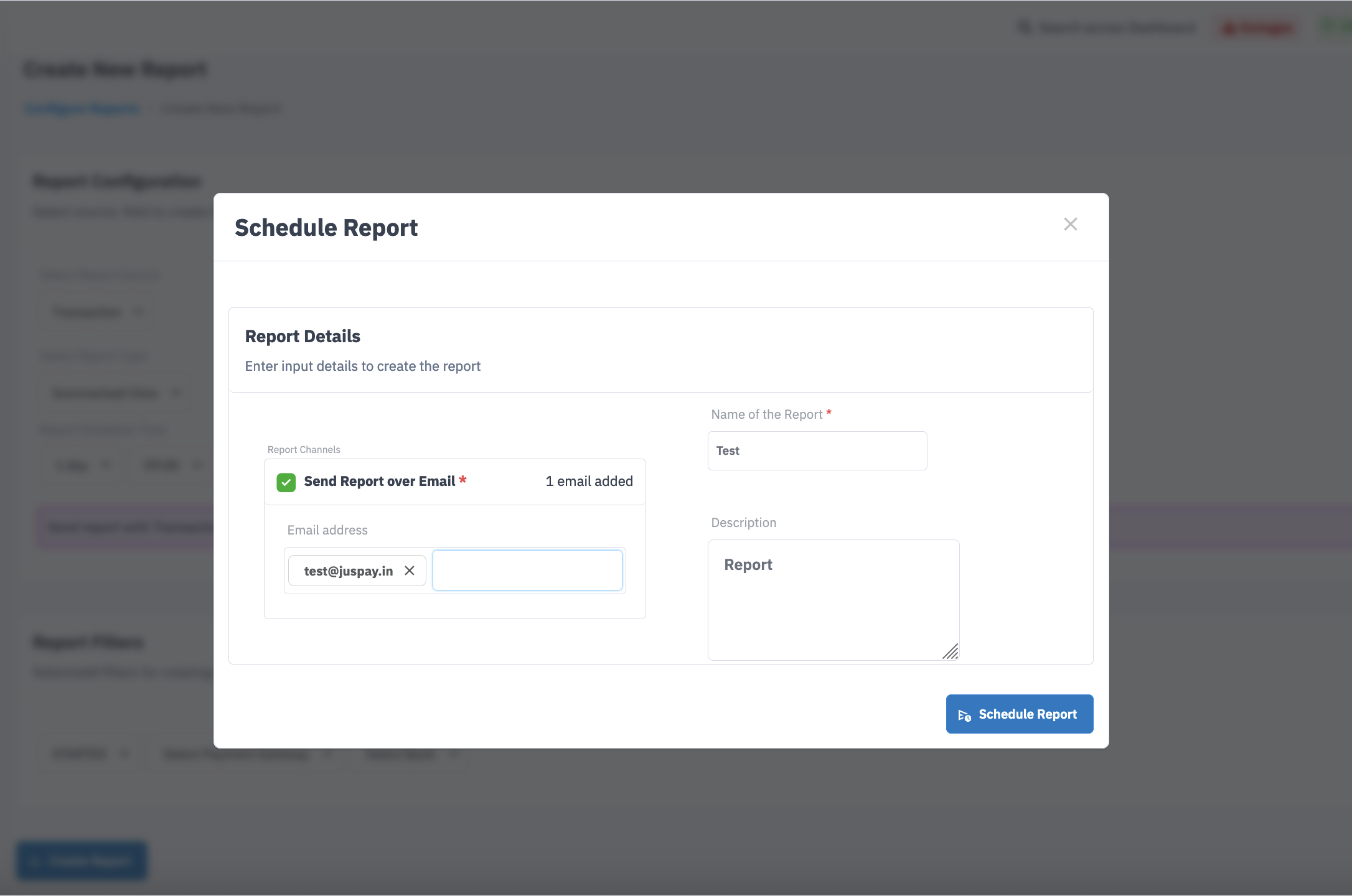
Step 4: Under Report Details, mention the Email addresses to which the report is to be triggered, the name of the report and a brief description.
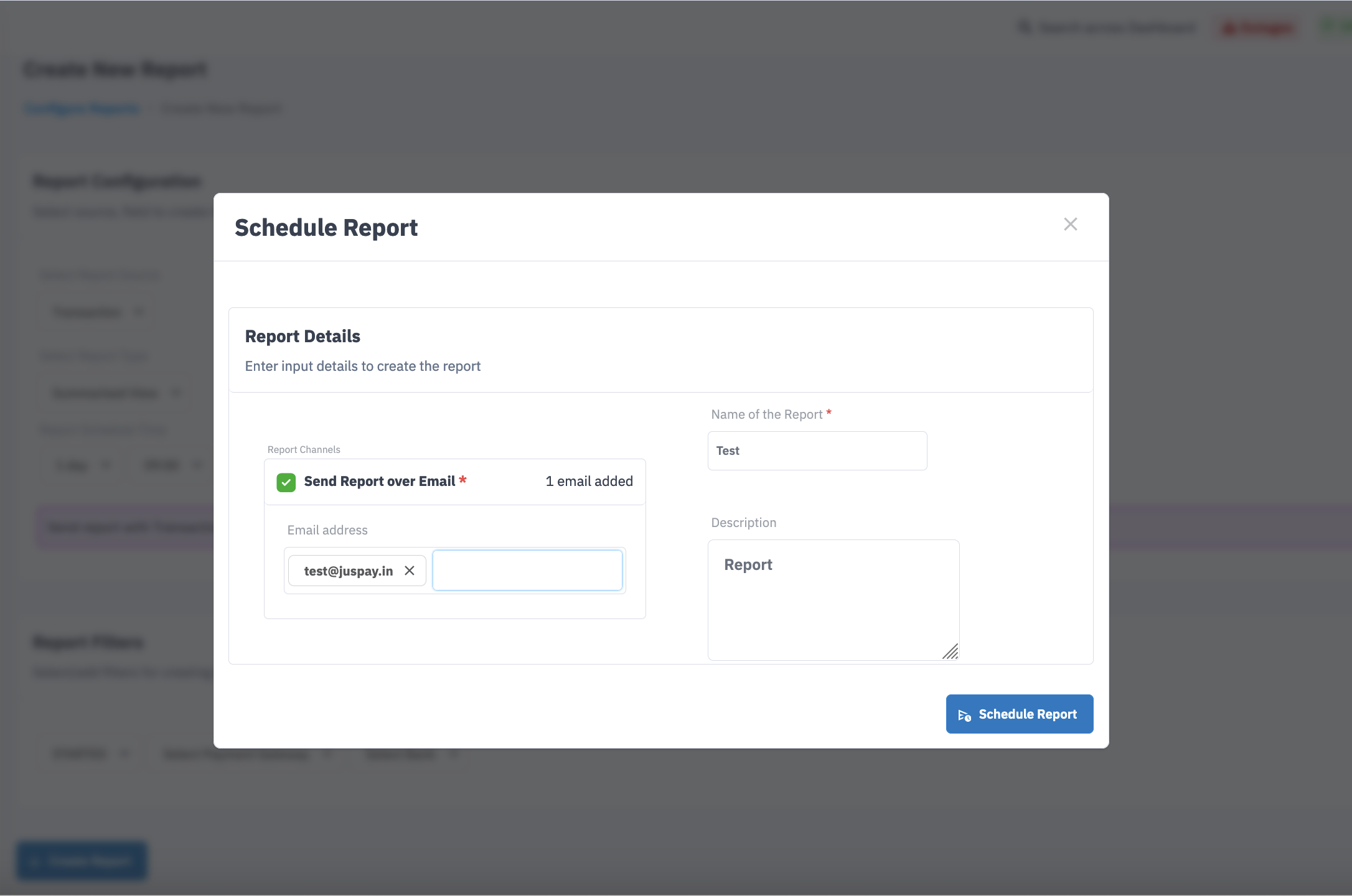
Step 5: Click on the Schedule Report button. The configured Email addresses will receive the configured report via Emails .
The report details can be viewed by clicking on the report row view available in the reports module.
How to configure Standard Reports ?
Step 1: Navigate to the Alerts Module on the EC analytics dashboard. In the Navigation bar, click on Monitoring followed by Reports.
Step 2: Switch to Standard Reports tab.
Step 3: Choose the type of report you want to schedule. Three types of Reports are available. They are :
Transaction Refund Report : This report gives unified view of transaction and refund data.
Manual Review Report : This report gives refund and transaction details for manual review refunds for past 11 days.
New Orders Report : This report gives details about New Orders.
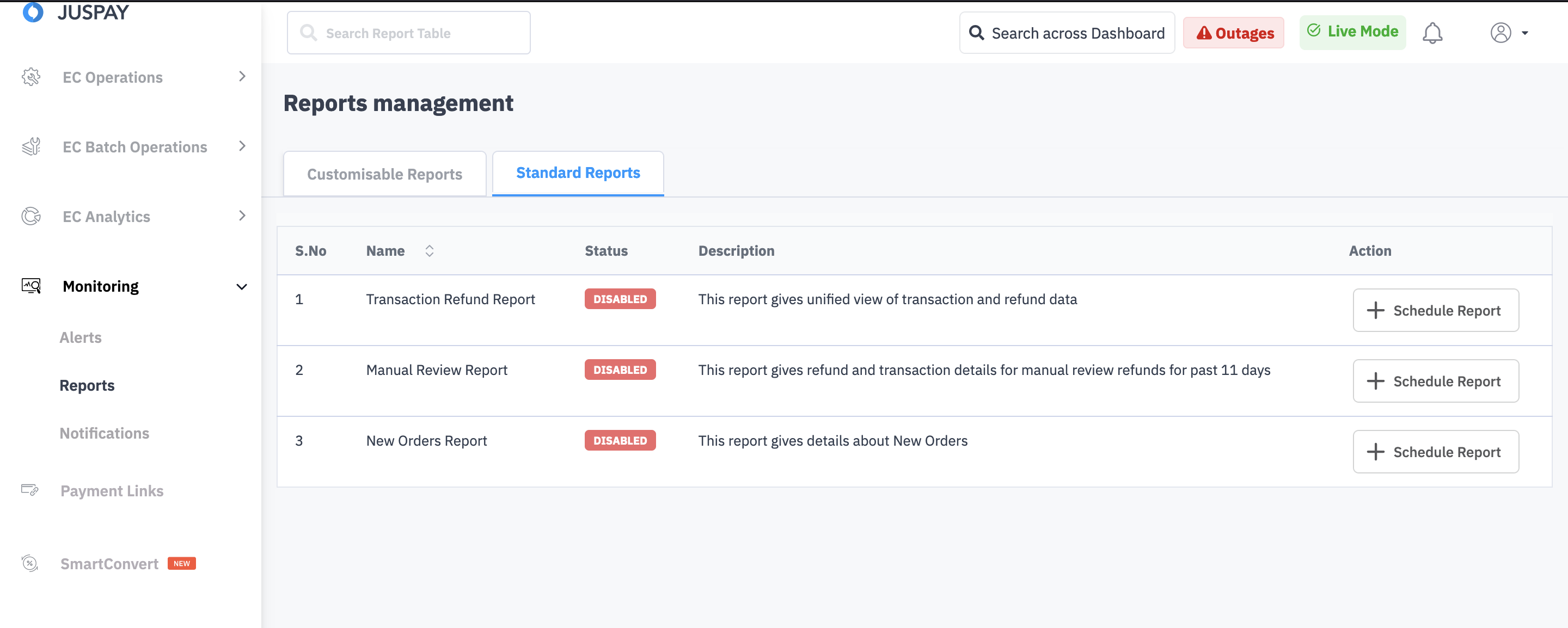
Step 4 : Click on Schedule Report button available against the each report.
Step 5 : Enter the Report Schedule Time and Emails to which the reports need to be triggered.
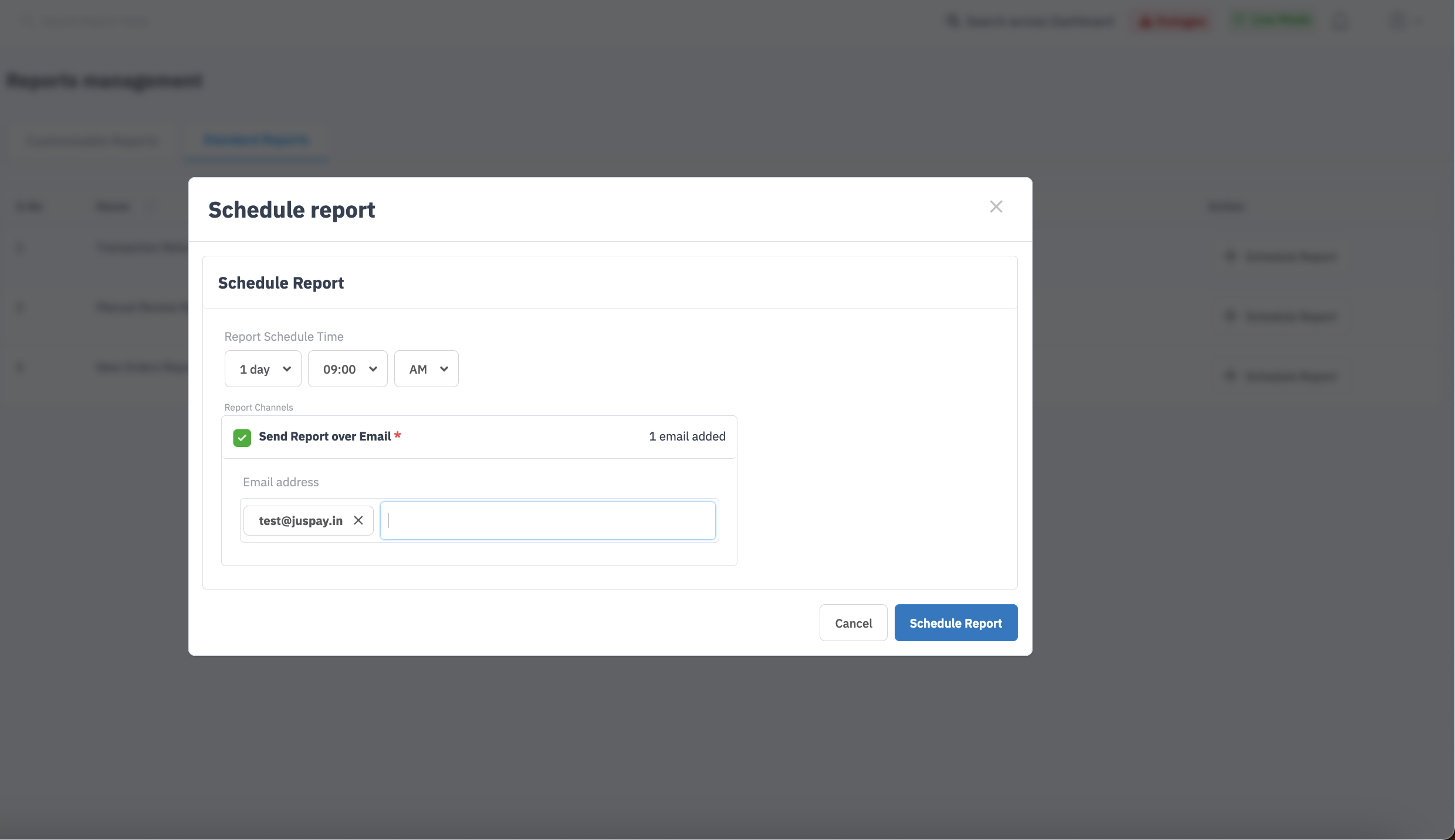
Step 6 : Click on Schedule Report button. The configured Email addresses will receive the configured report via Emails .
Standard Reports can be edited and enabled/disabled as per requirement.
- Have questions?
- Need help? Contact support
- LLM? Read llms.txt
