


Authorising an API eMandate
You can authorise an eMandate using your netbanking login, or your debit card and PIN, or your Aadhaar number.
Note: API eMandate authorisation is only available for those destination banks (customer's banks) that have integrated with the NPCI API eMandate gateway (ONMAGS). Please see here for the list of live banks.
When your merchant asks you to authorise an eMandate (electronic mandate), you will go through several screens.
Here's what you need to do.
Step 1. On the LotusPay eMandate authorisation page, check the mandate request details carefully. If you need help, contact your merchant. Read the detailed instructions if you wish. Select one of the following auth modes:
- Netbanking
- Debit card and PIN
- Aadhaar
Only the auth modes available for your destination bank will be visible.
Read the NACH Debit consent and accept the terms by checking the box.
Click on Proceed.
Step 2. You will be redirected to the NPCI gateway (ONMAGS).
What happens next depends on which auth mode you selected.
- Netbanking: you will be instantly redirected to your bank's website. See the next step.
- Debit card: If your bank has the new flow, you'll do the authorisation on the ONMAGS page. If your bank has the legacy flow, you'll be redirected to your bank's website. See the next step.
- Aadhaar: You'll do the authorisation on the ONMAGS page.
Step 3 for debit card new flow and Aadhaar
You reach the ONMAGS auth page.
Click OK then check the mandate details and read the disclaimer.
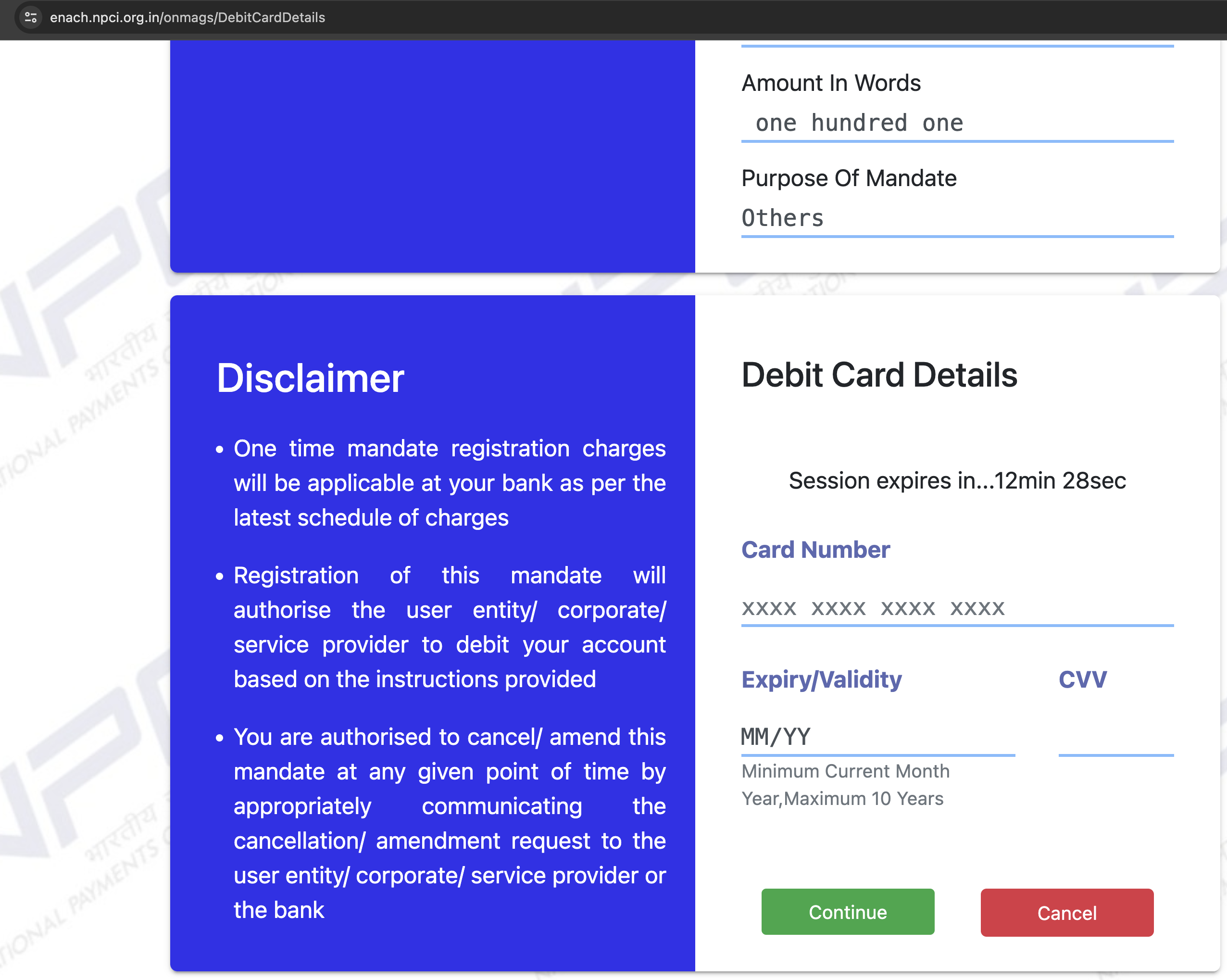
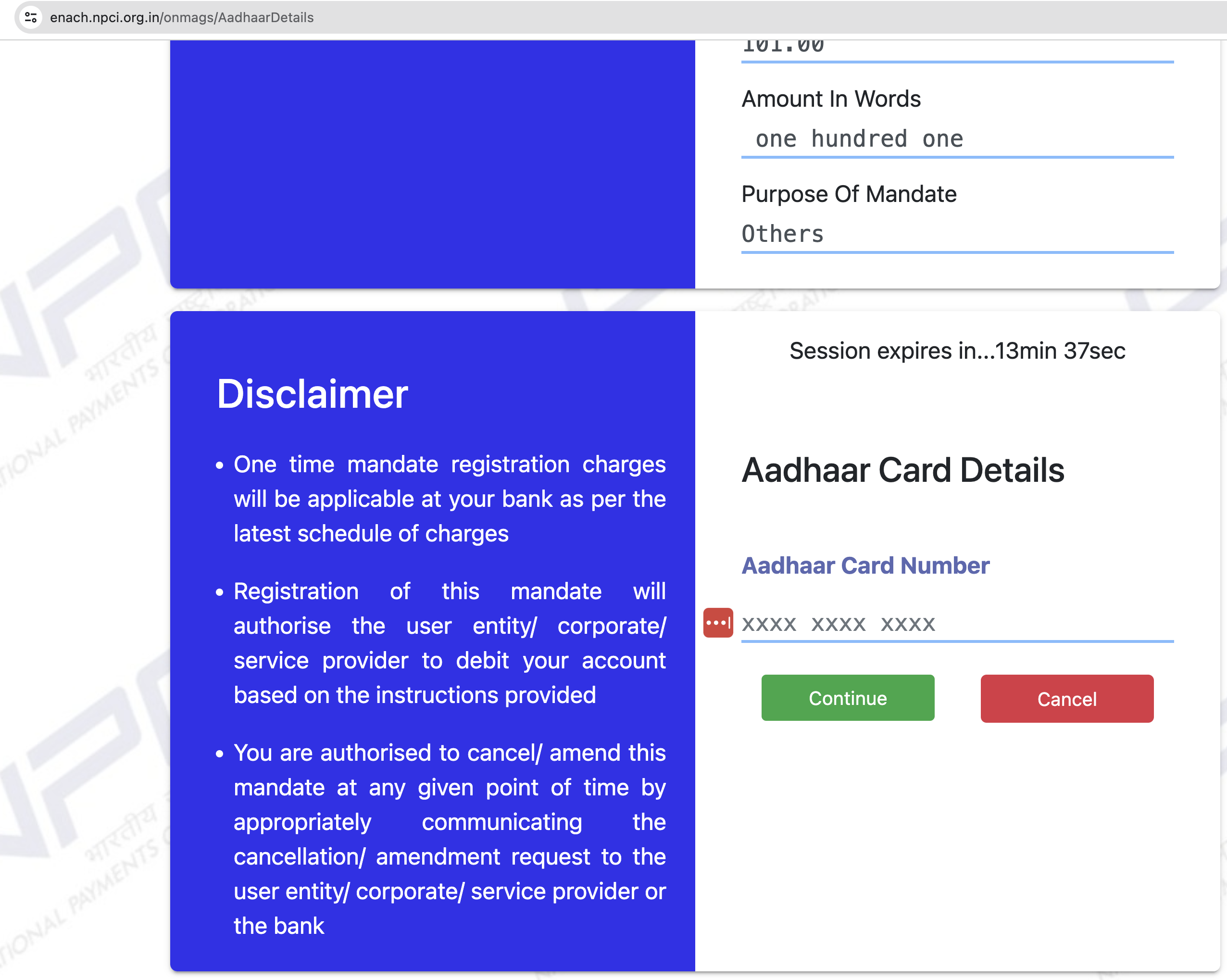
Enter your debit card details or Aadhaar number directly on this page.
- Debit card: enter your debit card number, expiry date and CVV, and click on Continue. An OTP will come from your bank, enter that.
- Aadhaar: enter your Aadhaar number, and click on Continue. An OTP will come from UIDAI, enter that. Another OTP will come from your bank, enter that.
Step 3 for debit card legacy flow and netbanking
You'll reach your bank's website.
Review the mandate details and follow the instructions.
This page varies depending on your bank's process. Some banks will do the next two steps in reverse order.
.png)
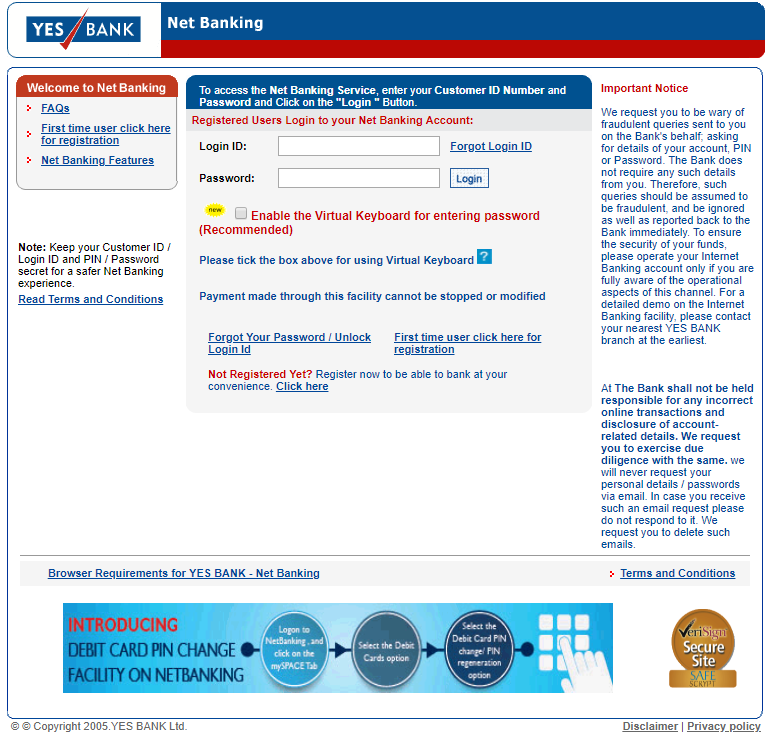
Enter your debit card number and PIN, or log into your internet banking (depending on the option you selected earlier).
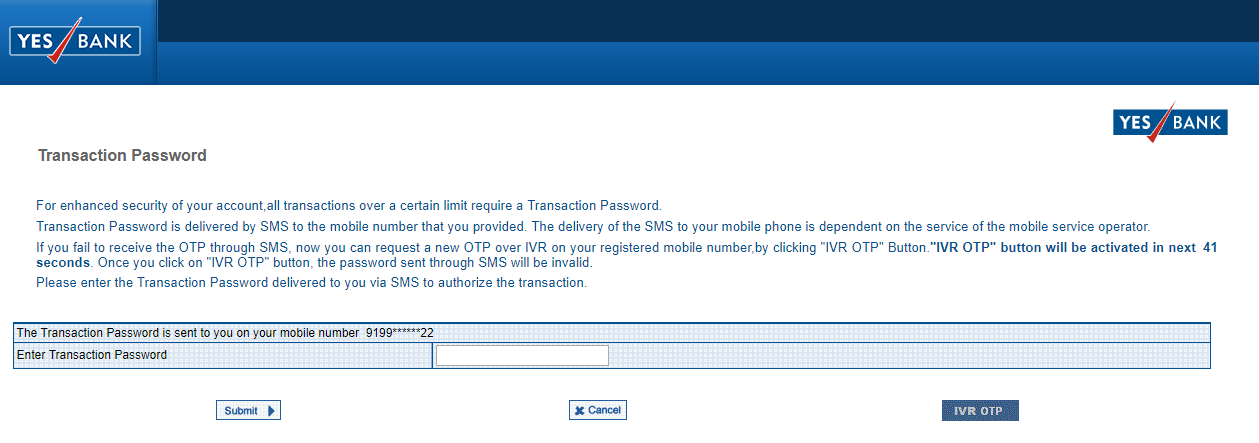
You will need to enter an OTP that you receive via SMS to the mobile number registered with your bank. Some banks may also ask your permission to do a one Rupee transaction to authorise the mandate.
Step 4 (all flows)
You will be redirected back to the ONMAGS transaction status page (see below), back to LotusPay, and then back to your merchant's website.
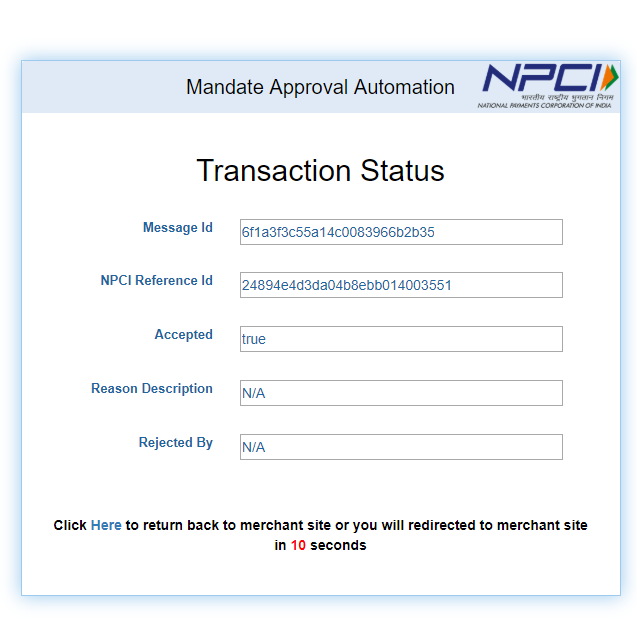
That's it - all done!
Troubleshooting tips
In rare cases, you may have trouble completing the above steps. Not to worry! You can always try again using the same link that you started the process from.
SMS not received
If you did not receive the SMS within three minutes, there could be a few reasons:
Issue: The SMS went to a different mobile number than what you were expecting. Solution: That must be the mobile number registered with your bank. Go ahead and use the OTP.
Issue: There is a delay in the system. Solution: Wait some time and try again later.
Error message on NPCI website or bank website
If you're seeing an error message on the NPCI page:
Issue: You entered an invalid bank account number. Solution: Double check the bank account number that you entered matches the netbanking login or debit card that you are using for mandate authorisation.
Issue: There is a system error. Solution: Wait some time and try again later.
- Have questions?
- Need help? Contact support
- LLM? Read llms.txt
