


Troubleshooting & Support
At Juspay, we are committed to providing a smooth and secure onboarding experience for every merchant. If you encounter any issues during setup or Dashboard access, this section will help you resolve them quickly.
In this section, you’ll find guidance on:
Reset Dashboard Password
 : Steps to recover access and set a new dashboard password.
Reset Two-Factor Authentication (2FA)
: Instructions for reconfiguring 2FA if access to your authenticator app is lost.Passkey Troubleshooting
: Learn about setup requirements, supported devices, and fixes for common passkey setup or login issues.
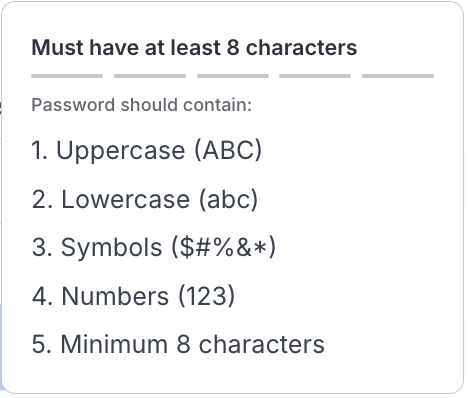
1. Reset Dashboard Password
2. Reset Two-Factor Authentication
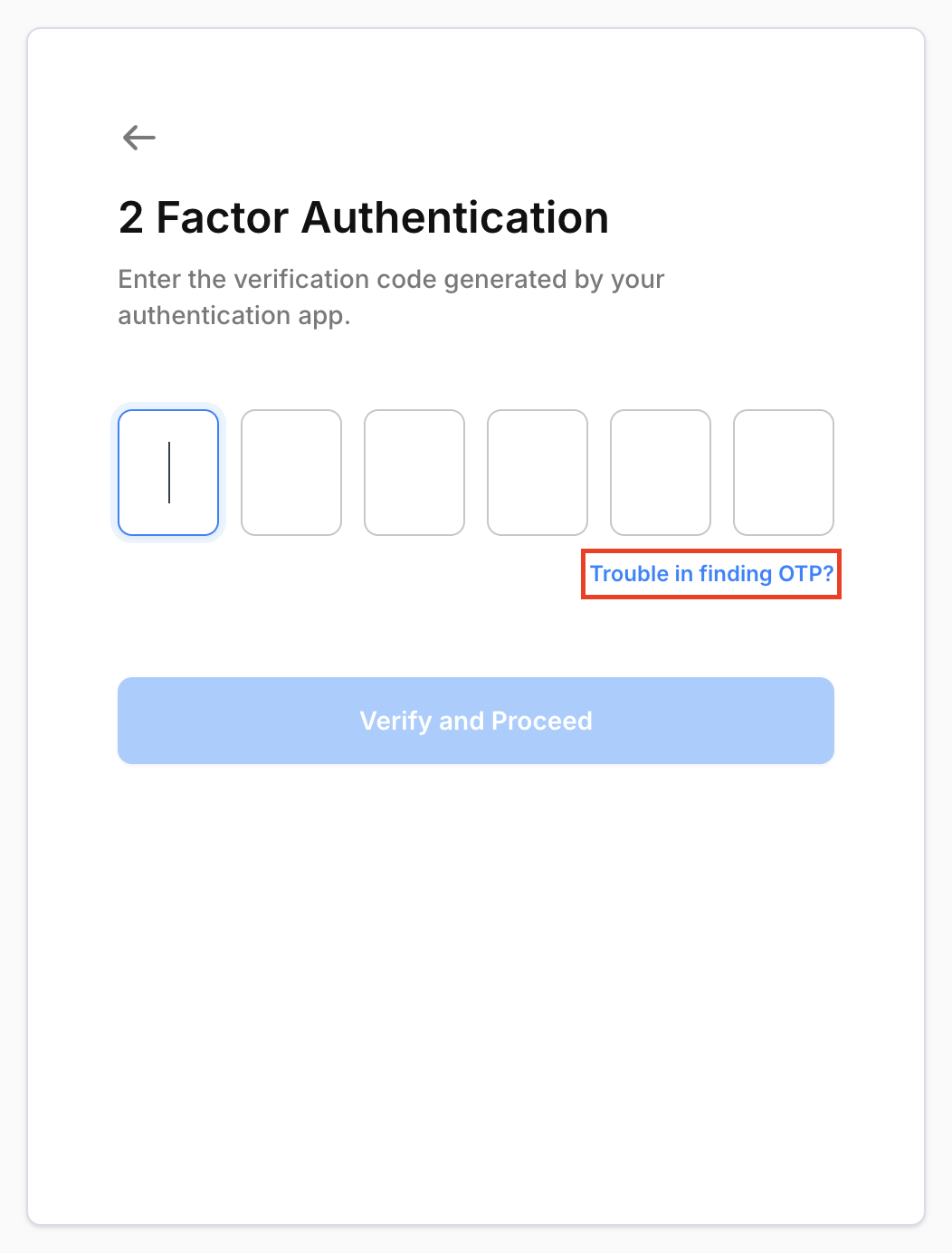
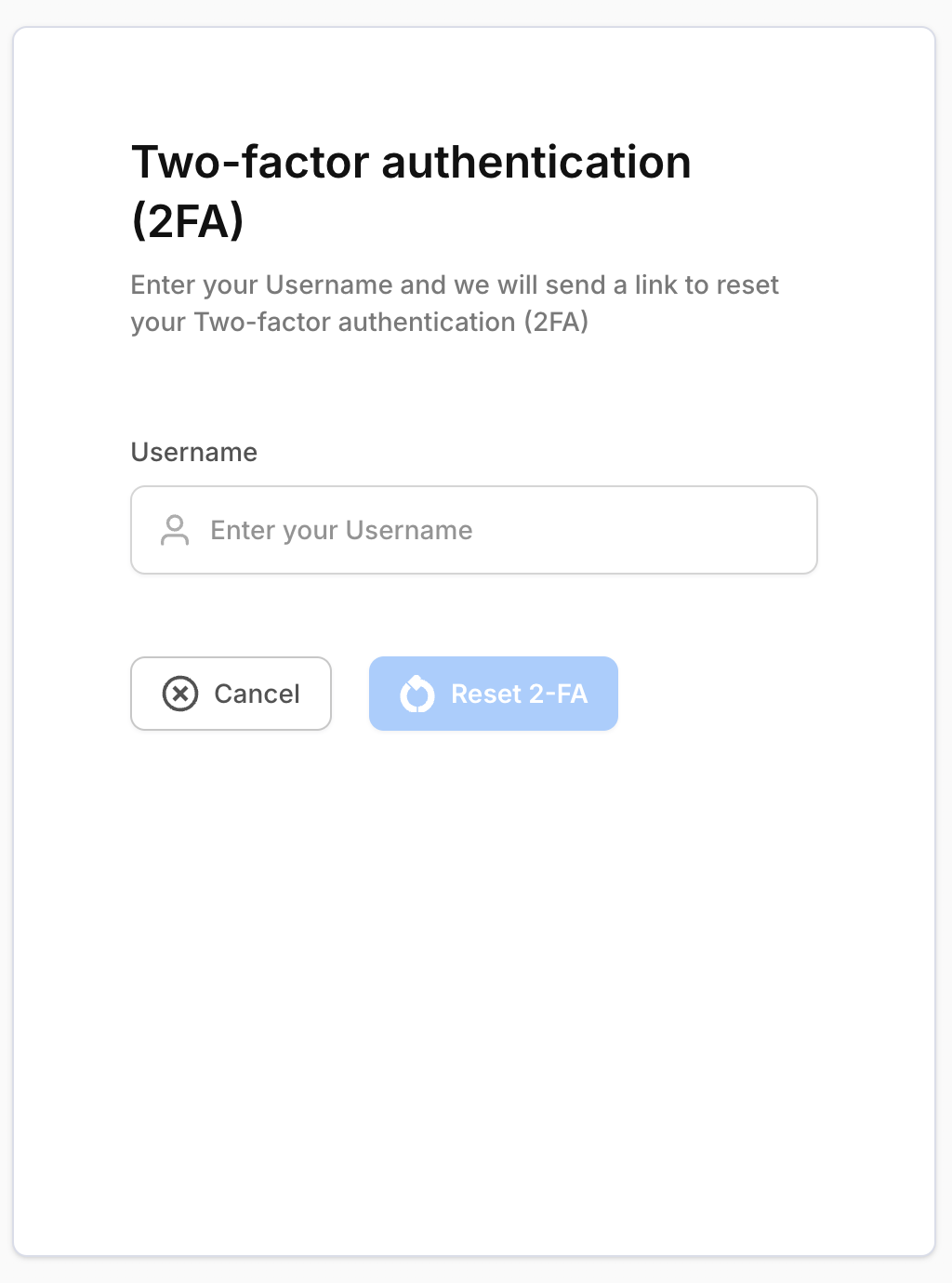
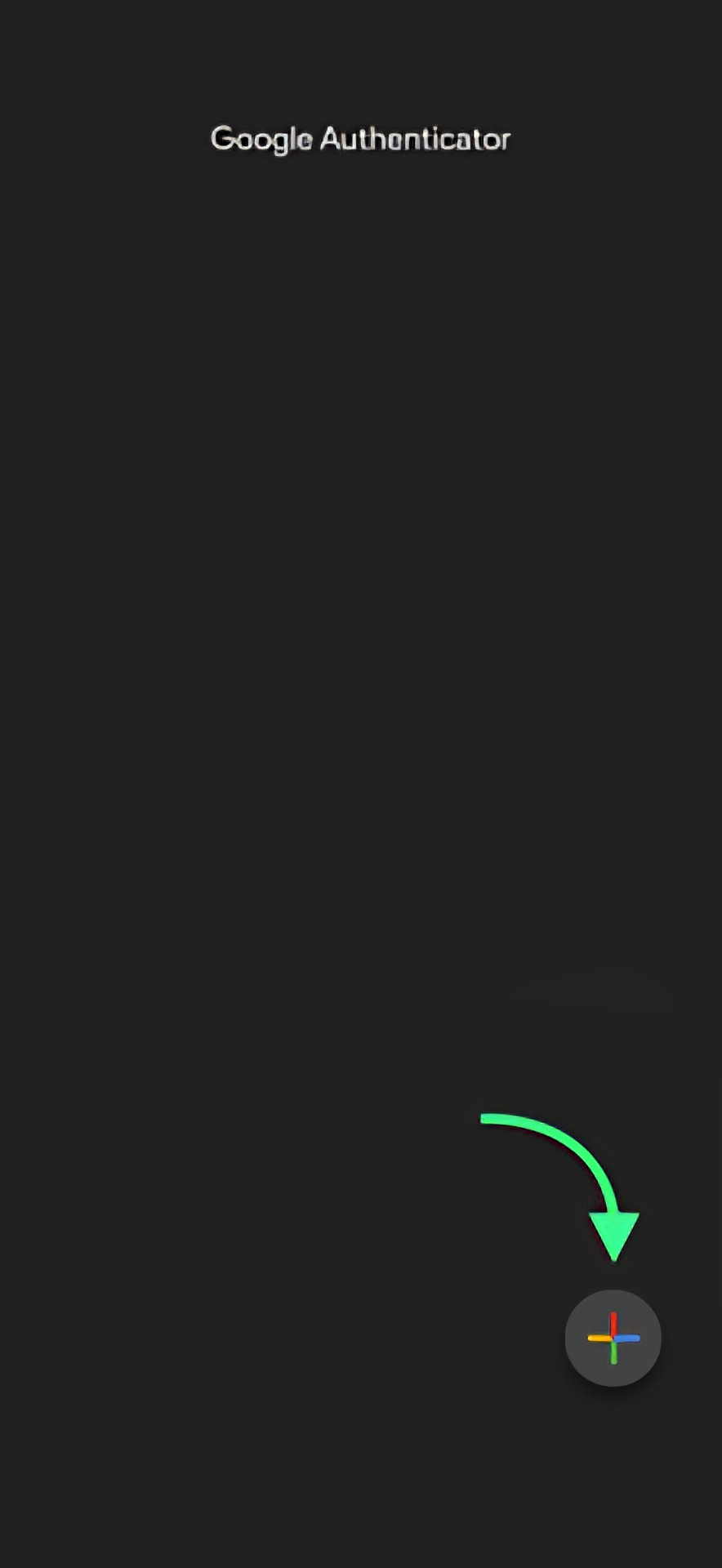
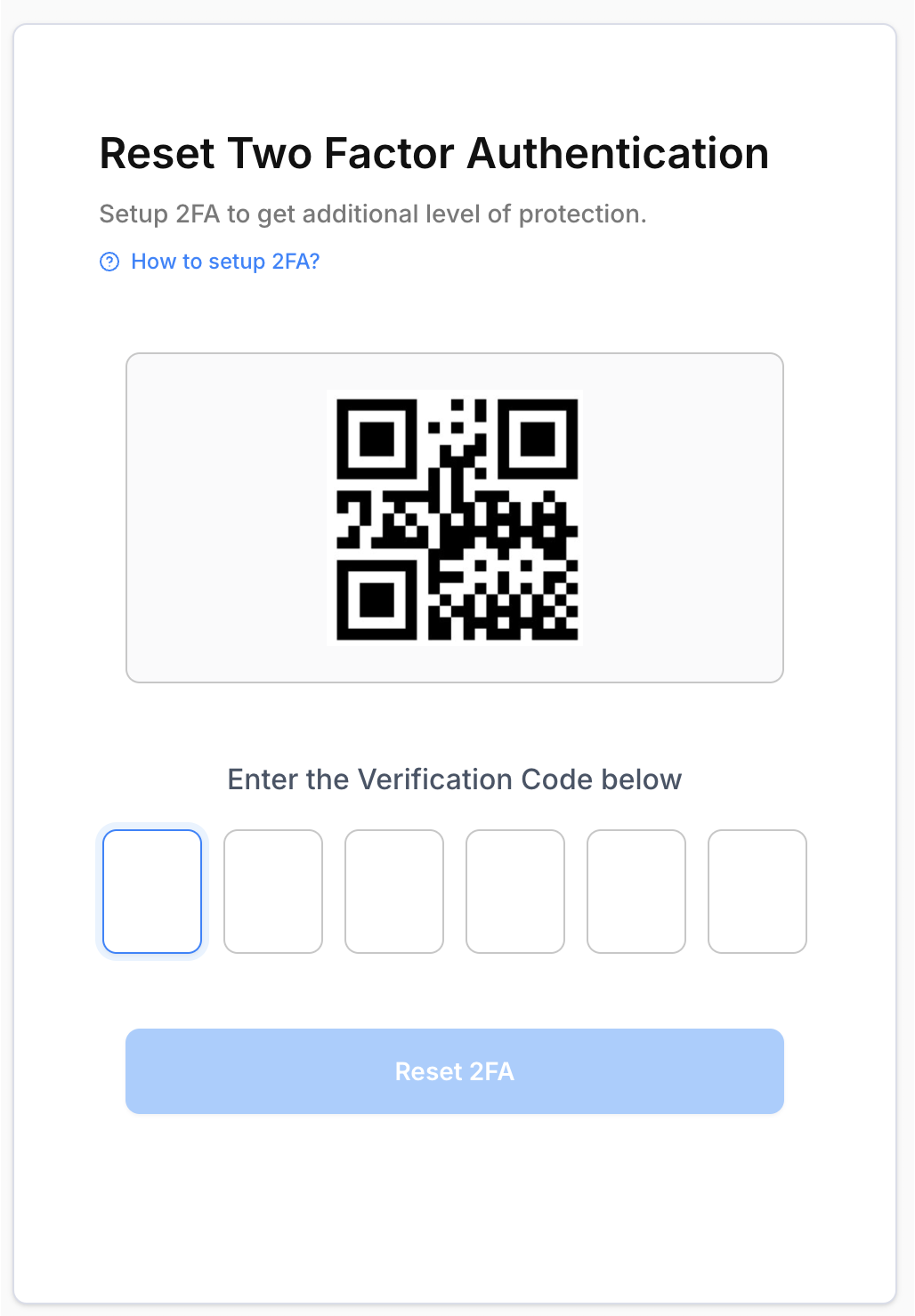
In case your account gets locked due to incorrect Username/Password/2FA OTP, please reach out to your administrator for getting it unlocked.
The account might get disabled if the user has not logged in for more than 90 days, in such case please reach out to your administrator for getting it re-enabled.
As an advanced security step, we have made 2FA authentication a mandatory step on Juspay unified dashboard. If you are planning to share the same account, you will have to create a new user account for each authorized personnel.
3. Passkey Troubleshooting
What is Passkey ?
Passkeys are a modern and secure way to authenticate your identity online without the need for traditional passwords. By leveraging technologies like Face ID, device PINs, or fingerprints, passkeys ensure a seamless login experience while maintaining the highest level of security. They eliminate the hassle of remembering complex passwords and reduce the risk of phishing attacks or credential theft. With passkeys, your credentials are securely stored on your device and are never shared, providing both convenience and peace of mind. Embrace this innovative approach to logging in and enjoy a faster, safer, and more user-friendly experience.
1. Passkey Requirements
1.1 iOS or macOS
iCloud Keychain Setup:
To use passkeys on Apple devices, iCloud Keychain must be enabled. This ensures seamless synchronization of passkeys across devices. To enable iCloud Keychain, go to your device’s Settings, select your Apple ID, navigate to iCloud, and turn on Keychain. iCloud accounts with Keychain enabled are automatically protected by Apple’s enforced MFA.
iOS 16 or macOS Ventura Required:
Passkeys are supported on devices running iOS 16 or later, or macOS Ventura or later. These operating systems offer the enhanced security features required for passkeys. Ensure your device is updated to these versions or higher.
1.2 Windows
Windows Hello Setup:
To use passkeys on Windows devices, Windows Hello must be configured. This biometric-based technology supports authentication using facial recognition, fingerprints, or a secure PIN. Supported on Windows 10 or later, Windows Hello ensures secure access to passkeys. To set up Windows Hello, go to Settings > Accounts > Sign-in options, and follow the setup prompts.
1.3 Android
Android Version 9 or Later:
Passkeys are supported on Android devices running Android 9 or newer. These versions provide the necessary integration with security features like biometrics and secure hardware storage.
Google Play Services Updated:
Ensure Google Play Services is up-to-date, as it plays a critical role in managing authentication and security processes required for passkeys.
Cross-Platform Requirement:
Always ensure that the web browser used (Safari, Chrome, or Edge) is updated to the latest version. Browser updates often include enhanced security features, including support for passkeys.
2. Storage Options for Passkeys
Most Recommended: Google Password Manager, iCloud Keychain, and Windows Hello are the top choices due to their security, ease of use, and ecosystem integration.
Avoid: Chrome Profile is not recommended due to integration issues.
Google Password Manager
Most Recommended: Stores and syncs passkeys across Android devices and Chrome. Secure and integrated with Google accounts.
iCloud Keychain
Most Recommended: Securely stores and syncs passkeys across Apple devices. Ideal for users in the Apple ecosystem.
Windows Hello
Most Recommended: Stores and manages passkeys securely, tied to your Microsoft account. Supports biometric authentication.
Local Keychain
Stores passkeys locally on macOS devices without cross-device syncing.
Credential Manager
Windows’ built-in local storage for passkeys, without cross-device syncing.
Chrome Profile
Not Recommended: Stores passkeys in your Chrome browser profile
3. Passkey Issues: Causes & Fixes
4.1 During Passkey Setup
4.1.1 Error: Unable to See Google Password Manager While Setting Up Passkey
Cause:
You may not be able to see the Google Password Manager while setting up a passkey if the sync feature is turned off.
Solution:
Check Google Password Manager Sync:
Ensure that Google Password Manager sync is turned on. This allows your passkey-related data to be synced across devices and browsers.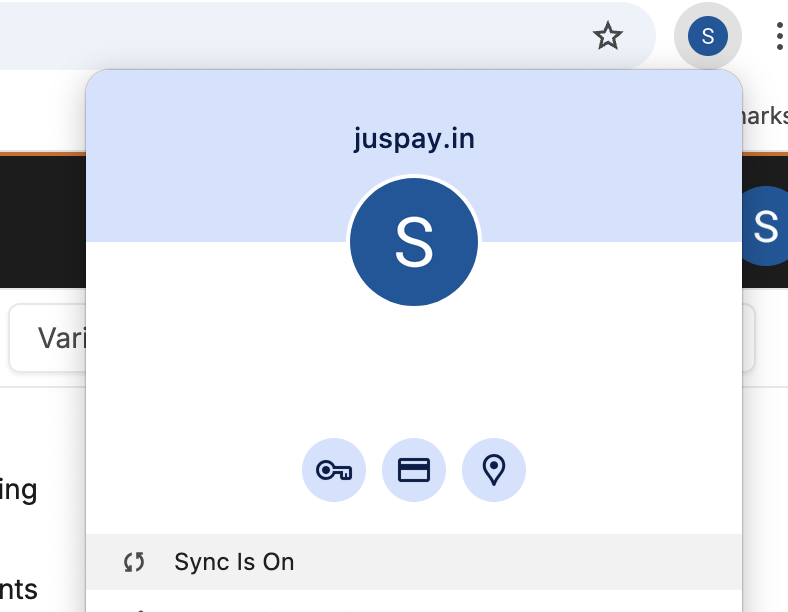
Sync is ON Reload Browser:
After turning on sync, reload your browser to ensure the changes take effect.Retry Creating Passkey:
Once the sync is enabled and the browser is refreshed, try setting up the passkey again.
4.1.2 Error: To save a passkey you need to enable iCloud Keychain
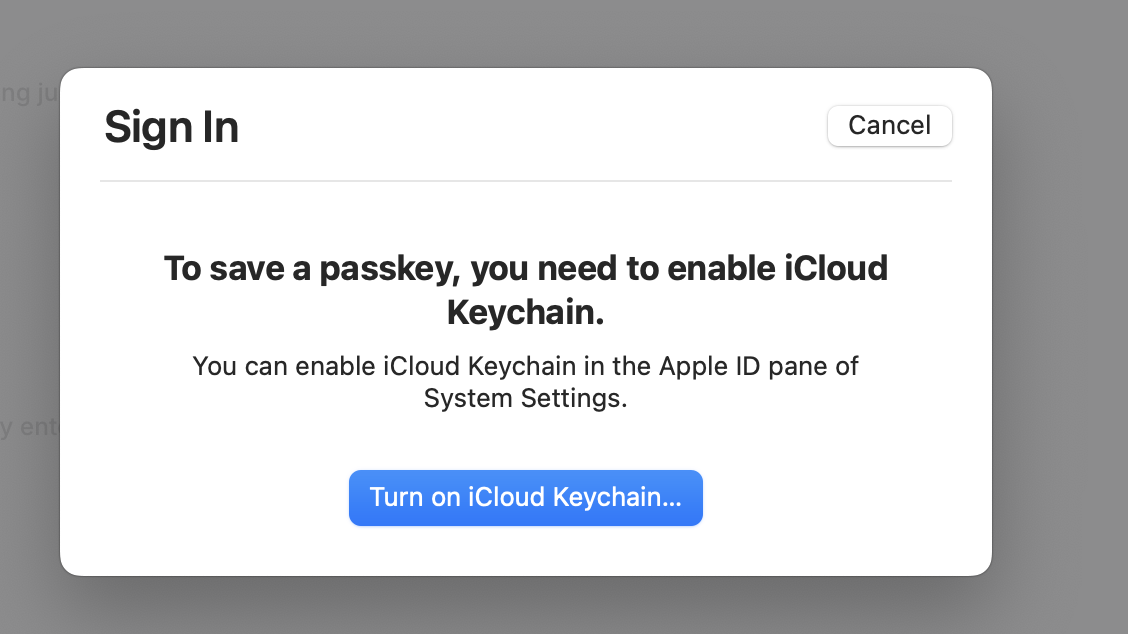
Cause:
To save a passkey on Apple devices, iCloud Keychain must be enabled. If it's disabled, you won't be able to store or sync your passkey across your Apple devices.
Solution:
Enable iCloud Keychain:
Go to your device's Settings, tap on your Apple ID, then select iCloud. Make sure iCloud Keychain is turned on.Sync Across Devices:
Once enabled, the passkey will be securely saved in iCloud and synced across your Apple devices.
After enabling iCloud Keychain, retry saving your passkey.
4.1.3 Issue: Storing Passkeys in Chrome Profile
Cause:
Storing passkeys under the Chrome profile is not recommended due to certain issues that can occur with Chrome's profile management.
Solution:
Avoid Storing Passkeys in Chrome Profile:
To avoid certain issues, do not store passkeys in the Chrome profile.Use a Supported Password Manager:
Store passkeys in Apple’s iCloud Keychain, Google Password Manager, or directly on your device.
4.1.4 Error: Passkey already exists in the selected credential storage. Please use a different storage or device.
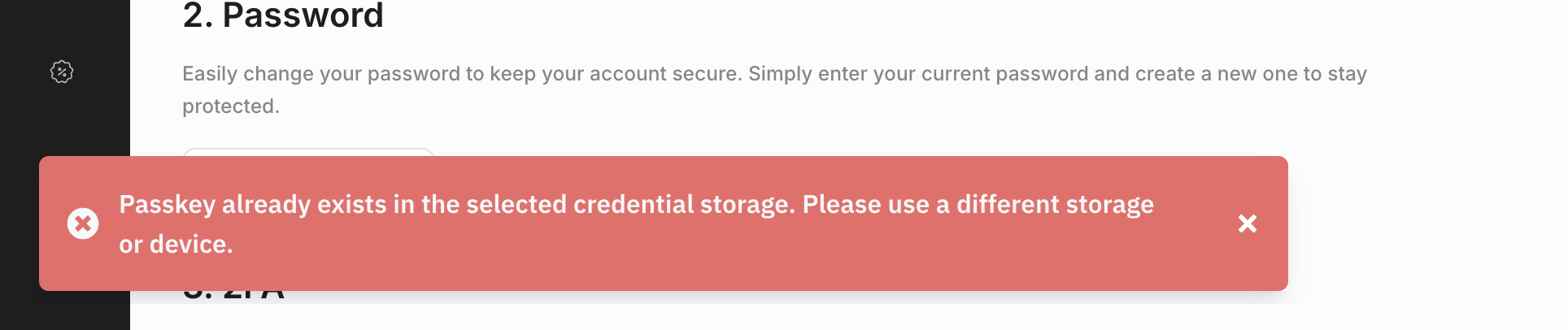
Cause:
The error occurs because a passkey with the same identifier already exists in the selected credential storage on your device. This can happen when you attempt to create a new passkey for an account or service that already has an associated passkey stored in the same storage location.
Solution:
Use the Existing Passkey:
If you were attempting to create a new passkey but an existing one already exists, use the existing passkey for authentication. Ensure you’re logged into the correct account on your device.Choose a Different Storage:
If your device allows it, select a different credential storage to store the new passkey.Use a Different Device:
If the issue persists and you cannot use the existing passkey, try creating the new passkey on another device. Ensure that the device meets the passkey requirements and is synced with the appropriate account.Delete Existing Passkey
Log in to your account on the dashboard , Go to My Account from profile section and delete the passkey
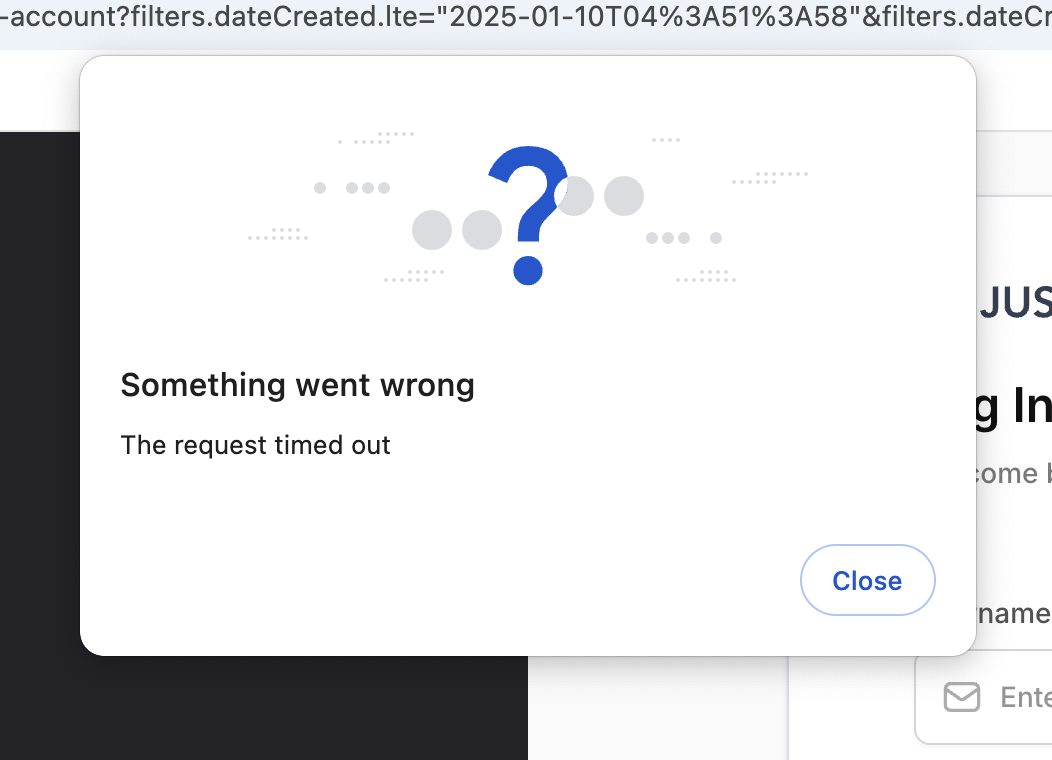
4.1.5 Error: Something went wrong. The request timed out.
Cause:
The "Request Timed Out" error can occur due to two main reasons:
Period of Inactivity: If there was no user interaction (like clicks or keystrokes) for a certain amount of time, the system may automatically close the session, leading to a timeout.
Server Response Delay: This error typically occurs when the server takes too long to respond, possibly due to network connectivity issues or high server load.
Cause:
Check Your Internet Connection:
Ensure you have a stable connection. If needed, switch networks or reset your connection.Resume or Retry:
If you’ve been inactive for a while, refresh the page or retry the action. This will help re-establish the session and allow you to continue from where you left off.
4.2 Login via Passkey
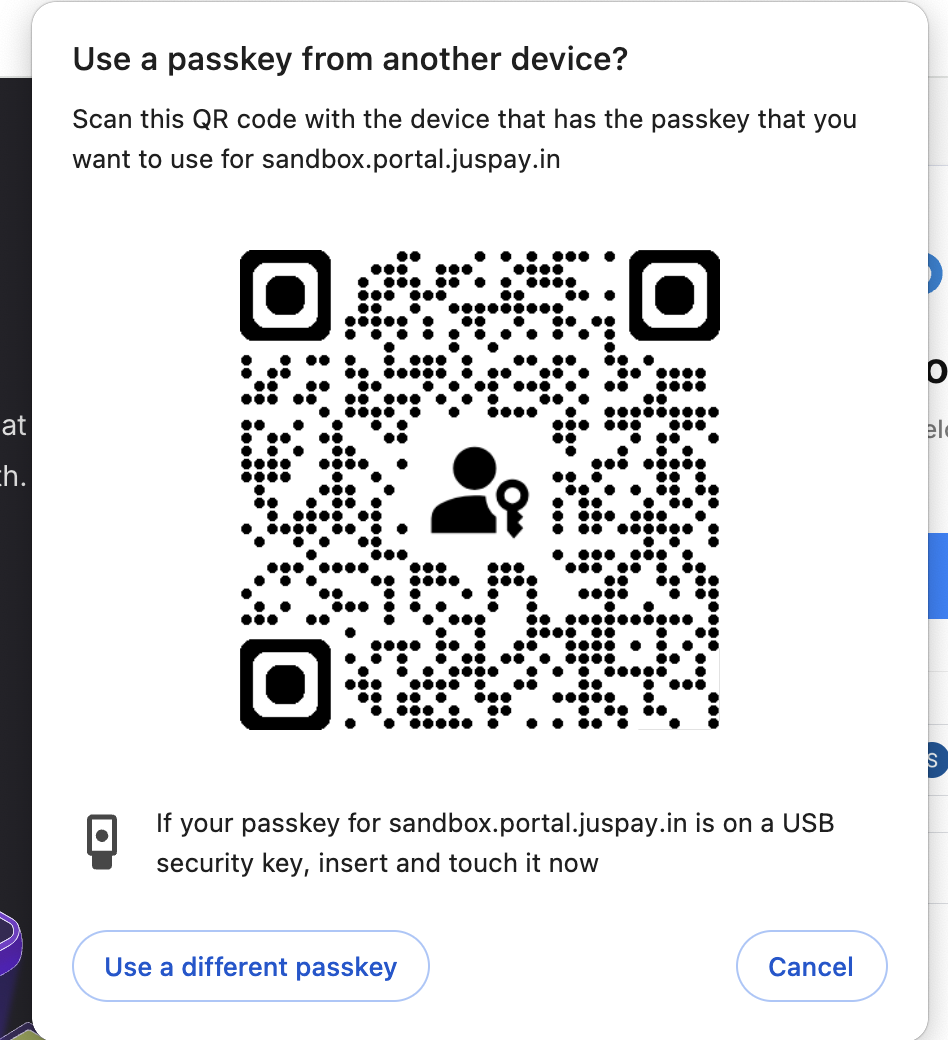
4.2.1 Issue: I’m seeing QR Code
Cause:
A passkey is tied to a specific account and platform (e.g., a device or a cloud-synced platform like iCloud Keychain). If you see a QR code when attempting to log in using a passkey, it means that the passkey is not available on your current device or platform, even though it may have been set up on a different device (such as an iOS or Android smartphone).
Solution:
Cross-Platform Authentication:
If the device where the passkey was previously created has a camera, you can scan the QR code to log in using the existing passkey. This is known as passkey cross-platform authentication.Set Up Passkey on Current Device:
After logging in, you will be shown a "Create Passkey" page. Follow the steps to set up a passkey for your current device or go to “My Account “ page by clicking on your profile and create passkey for your current device
This will allow you to use passkeys on your current device moving forward.
4.2.2 Issue: iCloud Keychain Passkey Not Showing During Login?
Cause:
If you set up a passkey using iCloud Keychain but are unable to see it, this may be due to syncing issues between your device and iCloud or a temporary browser-related issue.
Solution:
Restart Browser:
Close and reopen your browser to refresh the session and allow it to sync with iCloud Keychain.Restart Device:
If the passkey still isn't showing up, restart your device to ensure proper synchronization with iCloud Keychain.
This should resolve any syncing issues and allow the passkey using icloud Keychain to appear for use.
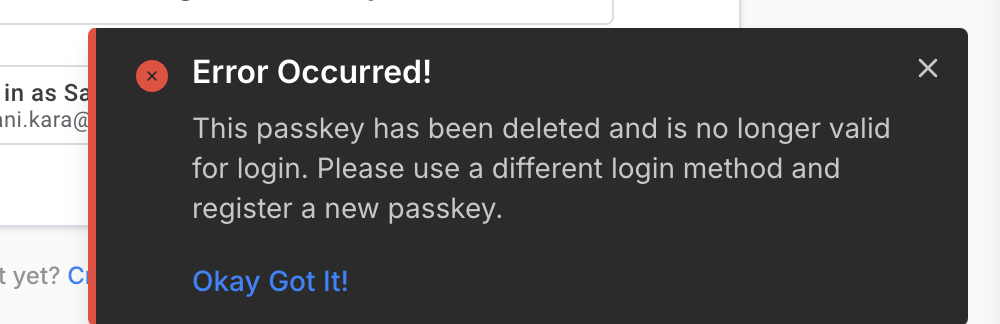
4.2.3 Error: This passkey has been deleted and is no longer valid for login. Please use a different login method and register a new passkey
Cause:
This happens when the passkey has been deleted from the server but still exists in the credential storage on your device.
Solution:
Log in to your account on the dashboard using your email, password, and 2FA.
Navigate to the "My Account" section and create a new passkey from there in the same credential storage. This will replace the outdated passkey and resolve the issue.3.2.3 This passkey has been deleted and is no longer valid for login. Please use a different login method and register a new passkey
- Have questions?
- Need help? Contact support
- LLM? Read llms.txt
