


Create Offers
Create Offers - The action button on the top right of the offers homepage.
Steps and sections involved in creating an offer on the Juspay Dashboard.
Offer Details
Offer details is the 1st step in creating an offer. This section helps you configure the basic and mandatory fields for the offer.
|
Field Name
|
Field Type
|
Description
|
Mandatory
|
|---|---|---|---|
Coupon Based
| Boolean
| Default value set to YES. YES - User to apply the offer code on checkout. NO - Auto-application of the offer on checkout
| No
|
Offer Code / Voucher Code
| Text
| A unique identifier for the offer (Visible to customers as coupon code on checkout page)
| Yes
|
Offer Title
| Text
| A short phrase describing the offer (Visible on offers preview section of the checkout page)
| Yes
|
Offer Description
| Text
| A short detail of what the offer entails (Visible to customer on checkout page)
| No
|
Terms & Conditions
| Text
| A markdown format of the terms and conditions of the offer
| No
|
Cluster Name
| Dropdown
| List of clusters created by merchants in Clusters tab
| No
|
Offer Validity
| Calendar
| The start date and end date of the offer
| Yes
|
Offer campaign amount and count
| Numeric
| Set the number of times/amount the offer should be applied across all transactions
| No
|
Logo for offer
| Dropdown
| Select the logo for the offer to power the UI on the checkout page
| Yes
|
Offer Benefits
| Dropdown
| Instant Discount or Cashback - Flat amount can be entered OR Percentage discount can be entered with a cap on the max discount/cashback. Payment Locking via Offer - In this format JP will facilitate payment locking and BIN locking. EMI Discount/EMI Cashback - Discount/cashback for Low Cost EMI/No Cost EMI
| Yes
|
Choose EMI
| Dropdown
| Low Cost or No Cost EMI
| Yes (For EMI Discount/EMI cashback)
|
Minimum transaction amount
| Numeric
| Enter the minimum amount for which the offer can be applied
| Yes
|
Maximum transaction amount
| Numeric
| Enter the maximum amount for which the offer can be applied
| No
|
Currency
| Radio Button
| Default value - INR
| Yes
|
How and when to use Payment Locking via Offers?
Offer Logos (Sponsored By)
Merchant can select logo for an offer that they want to display on the payment page. The label and value for the logos has been added below
|
Label
|
Value
|
|---|---|
Merchant
| MERCHANT
|
Citi
| CITI
|
Cred
| CRED
|
Diners
| DINERS
|
Maestro
| MAESTRO
|
Mastercard
| MASTERCARD
|
Rupay
| RUPAY
|
Sodexo
| SODEXO
|
Visa
| VISA
|
Icici Bank
| ICICI
|
SBI
| SBI
|
PhonePe
| PHONEPE
|
Googlepay
| GOOGLEPAY
|
Freecharge
| FREECHARGE
|
Mobikwik
| MOBIKWIK
|
Amazonpay
| AMAZONPAY
|
Paytm
| PAYTM
|
PayZapp
| PAYZAPP
|
DhaniPay
| DHANIPAY
|
Slice
| SLICE
|
Fi
| FI
|
OneCard
| ONECARD
|
Jupiter
| JUPITER
|
Aditya Birla Payments Bank
| JP_ABPB
|
American Express
| AMEX
|
Discover
| DISCOVER
|
JCB
| JCB
|
Allahabad Bank
| JP_ALLB
|
BAJAJFINSERV EMI
| JP_BAJAJ
|
Andhra Bank
| JP_ANDHRA
|
AU Small Finance Bank
| JP_AUB
|
Bandhan Bank
| JP_BANDHAN
|
Bank of Bahrain and Kuwait
| JP_BBKM
|
Bank of Baroda
| JP_BOB
|
Bassein Catholic Bank
| JP_BASSEIN
|
Bhartiya Mahila Bank
| JP_BMAHILA
|
BNP Paribas
| JP_BNPP
|
CCAvenue Test Netbanking
| JP_AVENUES
|
Corporation Bank
| JP_CORP
|
DBS Bank Ltd
| JP_DBS
|
DENA Bank
| JP_DENA
|
ePaylater
| JP_EPAYLATER
|
Equitas Small Finance Bank
| JP_EQUITAS
|
ESAF Small Finance Bank
| JP_ESAF
|
Insta Cred
| JP_INSTACRED
|
Jana Cash
| JP_JANACASH
|
JioMoney
| JIOMONEY
|
Kalupur Bank
| JP_KLB
|
Kalyan Janata Sahakari Bank
| JP_KJSB
|
LAZYPAY
| LAZYPAY
|
LinePay
| JP_LINEPAY
|
M-Pesa
| JP_MPESA
|
Mehsana Urban Co. Op. Bank
| JP_MUCOOP
|
mRupee
| JP_MRUPEE
|
North East Small Finance Bank
| JP_NESFB
|
North Kanara GSB
| JP_NKGSB
|
Olamoney
| OLAMONEY
|
Oriental Bank Of Commerce
| JP_OBC
|
OxiCash
| JP_OXICASH
|
Oxigen
| JP_OXIGEN
|
PayCash
| JP_PAYCASH
|
PAYPAL
| PAYPAL
|
PayU Money
| PAYUMONEY
|
Punjab and Maharashtra Coop Bank
| JP_PMCB
|
Royal Bank of Scotland
| JP_RBS
|
SIMPL Pay Later
| SIMPL
|
Suryodaya Bank
| JP_SURYO
|
Suryoday Small Finance Bank
| JP_SSFB
|
Syndicate Bank
| JP_SYNB
|
Tata PayLater
| TATAPAYLATER
|
Tamil Nadu State Apex Coop Bank
| JP_TNSC
|
Thane Bharat Sahakari Bank
| JP_TBSB
|
TJSB
| JP_TJSB
|
TPSL NB
| JP_TPSLDUMMY
|
Ujjivan Small Finance Bank
| JP_USFB
|
United Bank Of India
| JP_UNIB
|
Varachha Co-operative Bank
| JP_VCB
|
Vijaya Bank
| JP_VJYB
|
ZestMoney
| ZESTMONEY
|
ZipCash
| JP_ZIPCASH
|
Zoroastrian Cooperative Bank
| JP_ZCB
|
Fino Payments Bank
| JP_FPB
|
NSDL Payments Bank
| JP_NSDLPB
|
SBM Bank India
| JP_SBMBI
|
Aryavart Bank
| JP_ARYAB
|
Baroda UP Bank
| JP_BUPB
|
India Post Payments Bank
| JP_IPPB
|
Abhyudaya Cooperative Bank
| JP_ACB
|
Bank of America
| JP_BOA
|
Barclays Bank
| JP_BARC
|
Chase Bank
| JP_CHASE
|
GP Parsik Bank
| JP_GPPB
|
HSBC Bank
| JP_HSBC
|
JP Morgan
| JP_JPM
|
Scotia Bank
| JP_SCOT
|
Thanjavur Central Coop Bank
| JP_TCCB
|
US Bank
| JP_USB
|
Wells Fargo Bank
| JP_WFB
|
Westpac Bank
| JP_WPB
|
Capital One Bank
| JP_CAPB
|
LoanTap Wallet
| LOANTAP
|
TWID Pay
| TWID
|
BHIM
| in.org.npci.upiapp
|
WHATSAPP BUSINESS
| com.whatsapp.w4b
|
AXIS PAY
| com.upi.axispay
|
SAMSUNG SPAYMINI
| com.samsung.android.spaymini
|
UNBI
| com.fss.unbipsp
|
HIKE
| com.bsb.hike
|
ABIPBL
| com.abipbl.upi
|
POLYMER
| com.microsoft.mobile.polymer
|
WIZELY
| ai.wizely.android
|
HILLR
| in.chillr
|
CITRUSPAY
| com.citrus.citruspay
|
MI PAY
| com.mipay.wallet.in
|
TRUECALLER
| com.truecaller
|
ANGEL MOBILE
| com.msf.angelmobile
|
FUNDS INDIA
| com.fundsindia
|
IMUTHOOT
| com.muthootfinance.imuthoot
|
ANGEL WEALTH
| com.angelbroking.angelwealth
|
Breeze
| BREEZE
|
KIWI
| KIWI
|
Snapmint
| SNAPMINT
|
HDFCTATANEU
| HDFCTATANEU
|
Multi-coupon codes
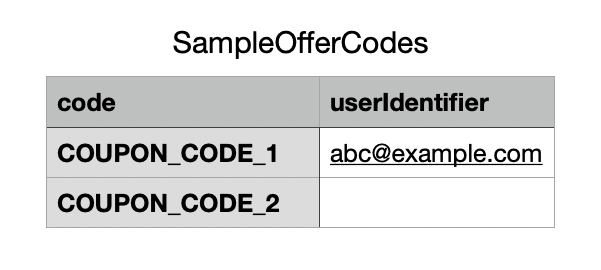
Hidden coupons can be shared with multiple customers - each with a unique coupon code. This can be done to restrict coupon codes to selected customers and to avoid reuse of coupon codes.
To avail multi-coupon codes, an offer has to be created with hidden coupons as true. Multiple coupon codes can be uploaded against a parent offer code.
To create targeted offers, a user identifier like customer email/customer phone number/customer ID can be specified for every unique coupon code. Alternatively, coupon codes can be specified without a user identifier as well. Both of the rows shown below are accepted values.
Offer on Order Breakup
Offer can be applied on the entire offer amount or on select elements of the amount using this feature. You can choose order breakup where offer needs to be applied - Base Amount, Delivery Charge, Delivery Tip, Donation, Surcharge, Packing charge, tax, other charges
Payment Details
Payment details is the section where the user can choose single or multiple payment groups and sub-options to better control the offer usage
|
Field Name
|
Field Type
|
Description
|
Mandatory
|
|---|---|---|---|
Transaction Type
| Multi-select
| Full Swipe transaction or EMI transactions
| No
|
Card
| Radio Button
| i) BIN CSV file upload ii) Select Bank or Network or Card Type
| No
|
Count Per Unique Card
| Numeric Field
| Options to limit usage of a unique card by count
| No
|
EMI Plans
| Row Item
| Select EMI plans from table with Bank Code, Card Type, Tenure and Interest Rate
| No
|
Netbanking
| Dropdown
| Select the banks where offer needs to be applied
| No
|
UPI
| Dropdown
| Select either i) UPI Collect - The handles which can used for the offer or ii) UPI Pay - UPI Apps which can be chosen for offers
| No
|
Wallet
| Dropdown
| Select the eligible wallets for the offer
| No
|
How to Configure Card BIN Based Offers?
Time Constraints
This section gets activated when you select the checkbox under the Offer Period selection on the Offer Details page.
This page shows only options which are relevant for the offer period. Eg: If the offer period is 2 weeks, then relevant options will be Time, Day and Date only.
|
Field Name
|
Field Type
|
Description
|
Mandatory
|
|---|---|---|---|
Select Time
| Time Selector
| Start Time 1. Select Hour 2. Select Minute 3. Select AM/PM End Time 1. Select Hour 2. Select Minute 3. Select AM/PM
| No
|
Select Date
| Text Box
| Key in the dates when the offer should be applied Eg: 1, 3, 5, 7, 15, 26
| No
|
Select Day
| Dropdown
| Option to limit the usage of the offer to certain days of the week
| No
|
Select Week
| Dropdown
| Option to limit the usage of the offer to certain weeks of a month
| No
|
Select Month
| Dropdown
| Option to limit the usage of the offer to certain months of a year
| No
|
How to Configure Timed Offers?
Product and Customer Details
Customer Details
This sections helps with targeting the offer to certain customer base and limiting the usage of the offer per customer.
|
Field Name
|
Field Type
|
Description
|
Mandatory
|
|---|---|---|---|
Amount per customer and Count per customer
| Textbox
| Options to limit usage of a unique card by count or amount
| No
|
Upload list of Customer IDs
| Upload file
| Option to upload a list of customer IDs who should be able to redeem the offer
| No
|
Upload list of Customer Phone Number
| Upload file
| Option to upload a list of customer phone number who should be able to redeem the offer
| No
|
Upload list of Customer Email IDs
| Upload file
| Option to upload a list of customer email ID who should be able to redeem the offer
| No
|
Order User Defined Fields(UDFs)
| Upload file
| Option to upload a list of Order UDFs Note - Please check out the offer videos for more details
| No
|
How to Configure Customer Based Offers?
Product Details
This sections helps with limiting the offer to certain products and defining offer eligibility and applicability for those products
|
Field Name
|
Field Type
|
Eligible SKU
|
|---|---|---|
SKU Application mode
| Dropdown
| -
|
List of SKUs to check Offer Eligibility
| Upload
| Order, Line Item, Product
|
Check Eligibility & Apply offer on different product
| Toggle
| Line Item, Product
|
List of SKUs to Apply offers
| Upload
| Line Item, Product
|
UDF Based Offers
How to Configure Order UDF Based Offers?
Additional Configurations
This sections provides some additional options which can control the offer behaviour.
|
Field Name
|
Field Type
|
Description
|
Mandatory
|
|---|---|---|---|
Add-on Offer
| Radio
| Once enabled, two more fields show up: Group Name - Identifies the group of offer Priority - Defines the order of offer application
| No
|
Platform
| Toggle Button
| Once enabled 4 checkboxes appear to choose the platform on which the offer should be applied
| No
|
How to Configure Add-on Offers?
- Have questions?
- Need help? Contact support
- LLM? Read llms.txt
