


PayU
Step 1 - Procure Gateway Credentials
Obtain the merchant credentials from the Payu team for Sandbox (testing) and Production (live).
You can procure the credentials form the PayU dashboard as follows -
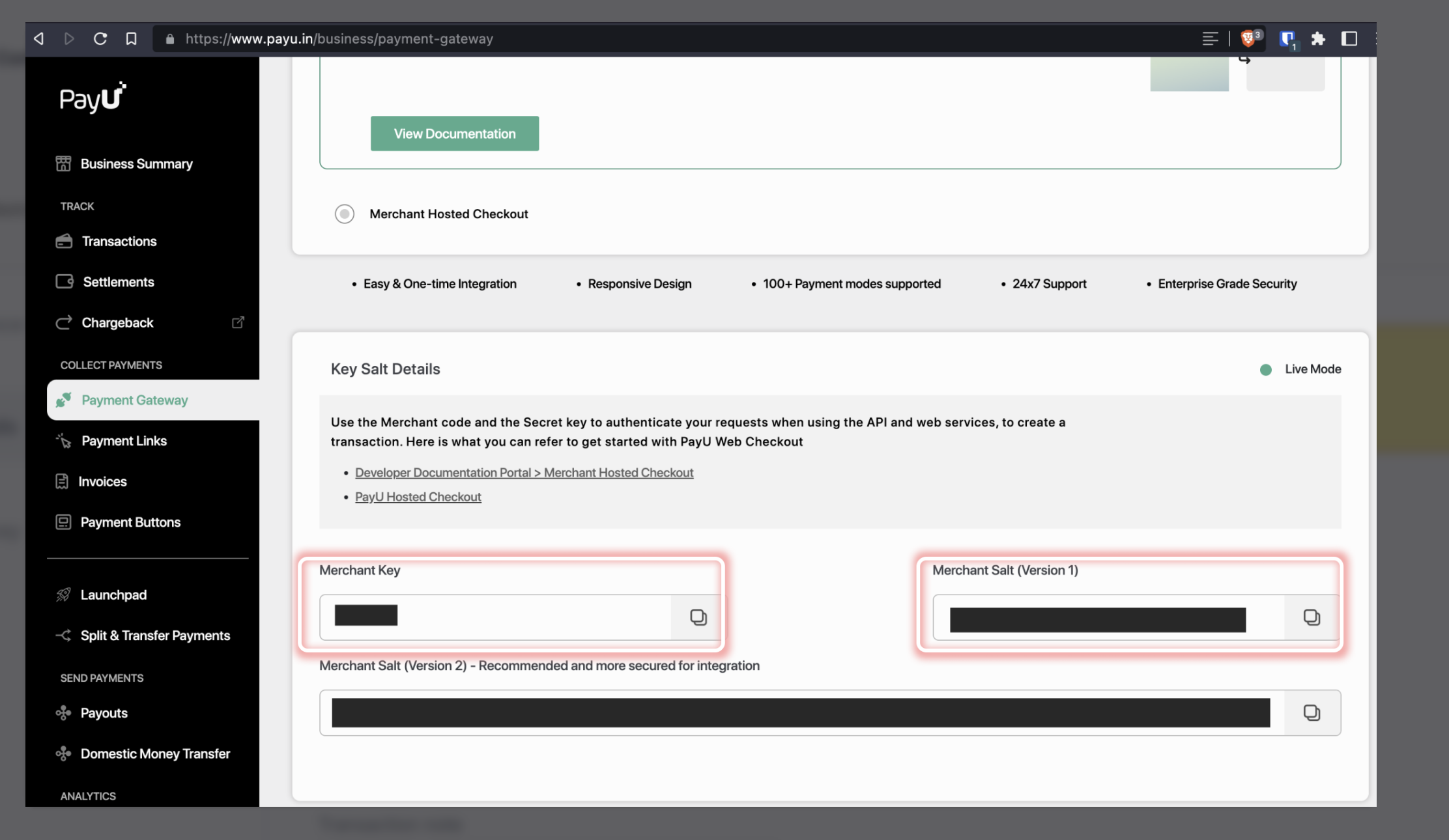
The fields marked * on Juspay Dashboard are mandatory and are required to be configured to proceed with the testing. Rest of the fields are optional and only required for specific features/flows.
Step 2 - Dashboard Configuration
Open up the Juspay Portal
Production: https://portal.juspay.in
 (Configuring here will affect your live environment)
Sandbox: https://sandbox.portal.juspay.in
(Dedicated for testing)
Navigate to Payments → PG Control Centre
Select PAYU under the “Add a Payment Gateway (PG)" section
Select an environment for the payment gateway. If not sure then confirm with PAYU team whether the credentials provided by them are for testing or production usage
Live Environment: Real money involved, all flows supported
Testing Environment: Simulate payments, only some flows are supported
Gateway Reference ID: For most cases you don’t need this but if you do then refer https://juspay.io/in/docs/hyper-checkout/android/resources/gateway-reference-id
Step 3 - Feature Enablement Email to PG
An email titled “Juspay <> PAYU Feature Enablement for Merchant Key - {Your PayU Merchant Key} (Juspay ID: 123456)” will be triggered from the Juspay Dashboard to PayU team to enable certain required flags.
Step 4 - Configure Payment Methods
Configure the payment methods as per your business needs using the Juspay Dashboard. Enable or disable payment methods your business will accept through PayU on this screen.
Step 5 - Advanced Feature Flags
Following feature flags are available under the PayU gateway -
Waiting Page Expiry In Seconds: Provide the wait page timer in seconds only if you want the payment gateway's wait page to be shown for UPI collect transactions. The recommended value is 300.
Split Settlement: Enabling this flag allows Settling the transaction amount into multiple aquiring bank accounts
S2S Integration: Enabling this flag would enable the S2S (Server to server) integration via PayU.
Pre-authorization: Enabling this flag would enable the transactions via PayU to be pre authorized.
Pass User Token to Gateway: This parameter enables user-level velocity rule application for offers. For Card Based Offers (CC, DC, EMI), it's optional. If used, rules apply to the token; if not, they apply to the card number.
One Time Mandate: Enabling this flag would enable the flow where money is blocked in User's account and one debit takes place post which Mandate expires.
Card Mandate: User registration and auto recurring debit based payments. Payment instrument must be CARD.
GooglePay Card Payments Enabled: Enable this only if you want google pay card payments via the payment gateway.
Emandate: Enabling this flag allows you to make Mandate payments with payment instruments other than CARD.
Direct Debit: Once user's account is linked, money gets debited using authentication token without any redirection, this is usually used for wallets/BNPLs.
CVV-less: Enabling this flag allows you to route CVV less transactions via PayU.
Step 6 - Configure Juspay URLs at Gateway
Refer to the Webhook Section to get the list of Juspay URLs that need to be whitelisted at the gateway end.
Step 7 - Testing
Test all payment flows using the sandbox environment. Ensure that all enabled payment methods work as expected and the callbacks are received correctly.
Step 8 - Go live
Switch your configuration to production credentials on Juspay Dashboard after thorough testing, and inform gateway to enable your production credentials if required.
- Have questions?
- Need help? Contact support
- LLM? Read llms.txt
