


Users Management
The User Management module allows administrators to create, manage, and control access for users on the Juspay Dashboard. This ensures secure and role-based access to different modules and features.
Accessing the User Module
Login to Juspay Dashboard » User Management » Users
The Users page lists all users associated with an account, including email, role, and status. It’s the central location for managing user access.
1. Invite a new user
A new user can be invited to access the dashboard by sending an email invitation and assigning an appropriate role.
Click Invite New User » Enter the email of the user » Select the required role » Click Send Invite.
After the invitation is sent:
The invited user is required to:
Set a password.
Complete two-factor authentication (2FA) setup.
Once the setup process is completed, the user will be able to log in to the dashboard.
The user’s access to modules and sub-modules is determined by the role assigned during the invitation process.
1.1 Product Specific User Creation
When inviting a new user, you can restrict their access to specific Product IDs and Gateway Reference IDs using the Advanced Settings section. This ensures the user can only view and operate on the selected products and gateways.
.jpg)
1.2 Custom Role Creation
A new role can be created and customized based on specific requirements. This allows administrators to control what actions users assigned to that role can view or perform within the Dashboard.
Two Options to Create:
Login to Juspay Dashboard » User Management » Roles » Create a New Role
User Management » + Invite New User » Scroll down to Create new role
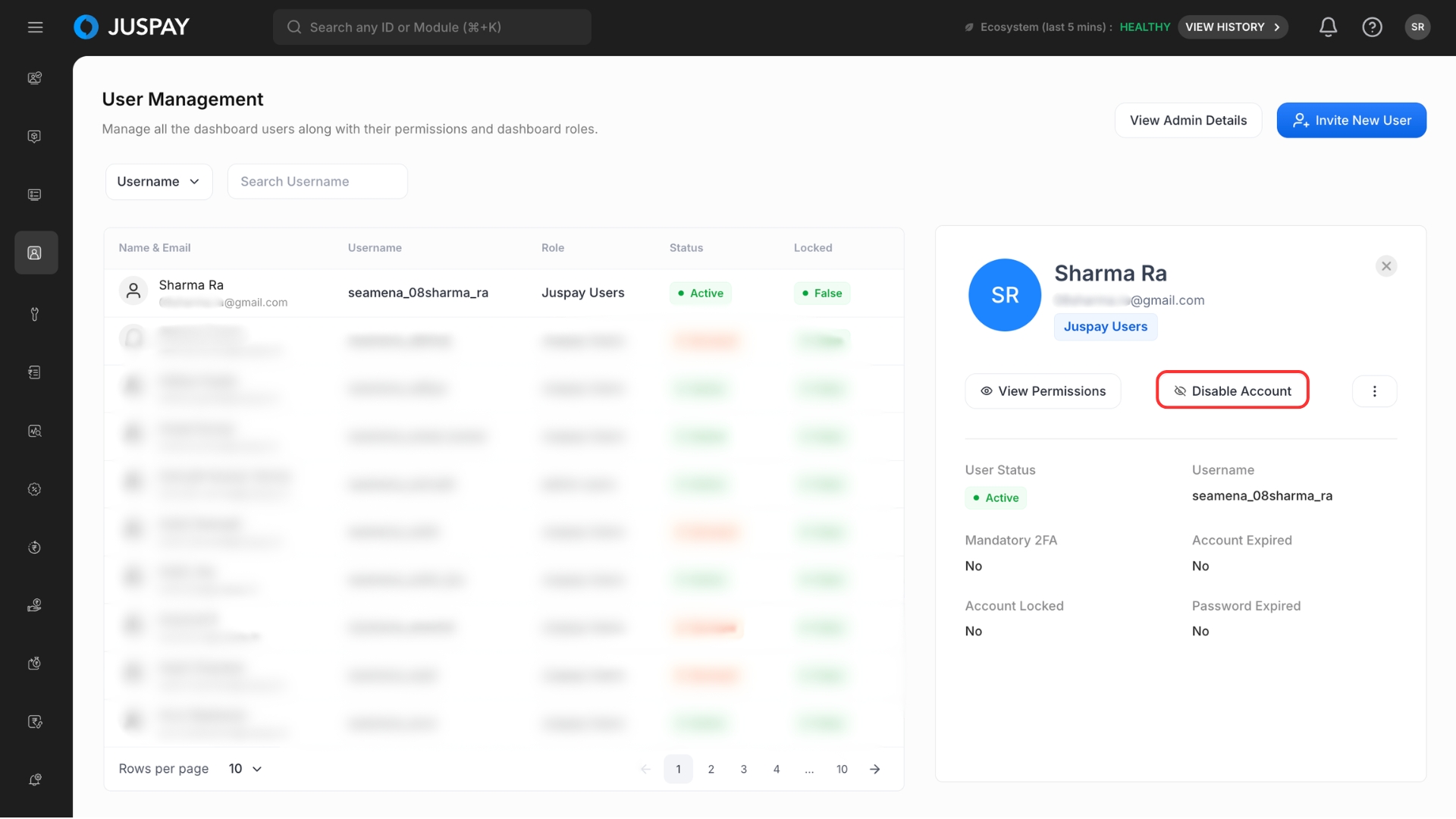
2. How to Enable/Disable users ?
User accounts can be enabled or disabled to control access to the dashboard. Disabling a user prevents login without deleting the account, while enabling restores access.
3. How to Update Email or Delete Users ?
User email address can be updated, or the user account can be deleted by selecting the required user from the Users list then:
Click the three-dot menu (︙) available in the user details view.
Select the required action:
Click Update Email to modify the email address, or
Click Delete User to permanently remove the user account.
Confirm the action.
.jpg)
- Have questions?
- Need help? Contact support
- LLM? Read llms.txt
